How to Update Shopify Prices in Bulk
Use Shopify's bulk editor or CSV import for planned price changes. Check variants and market prices, then decide whether you need recurring competitor-based repricing.
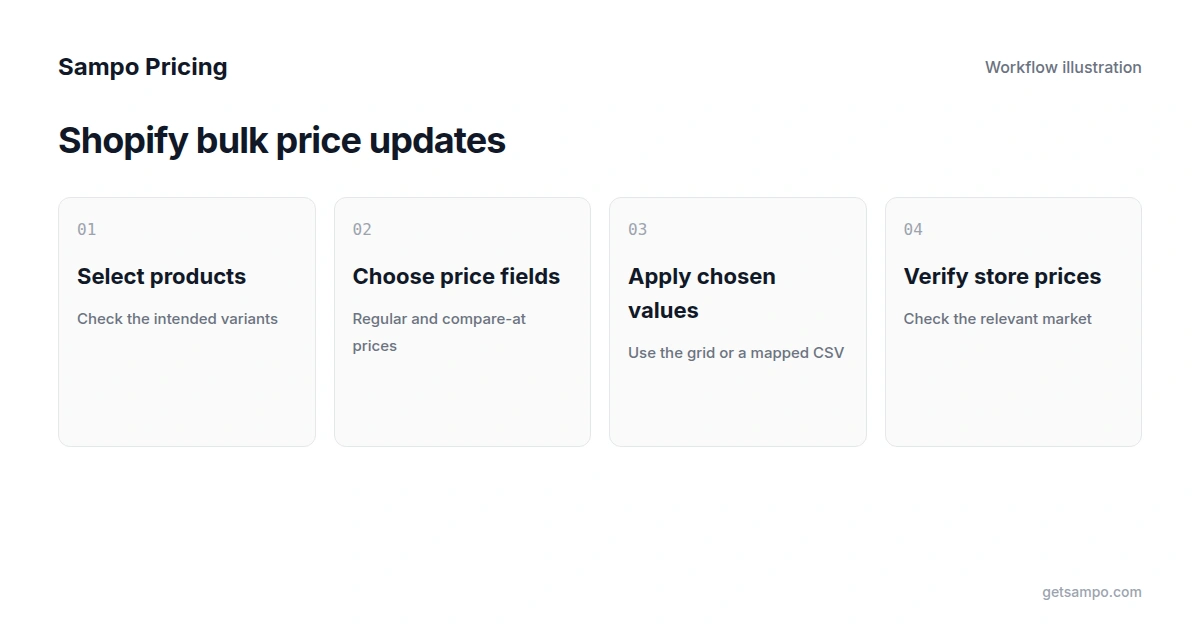
Shopify's built-in bulk editor lets you change prices for selected products and variants. A CSV workflow is useful when you have calculated different prices for many rows. Both can handle planned updates; competitor-based repricing adds a separate job: deciding how prices should respond to matched market observations.
Choose the price and products you want to change
Decide whether you are changing the regular price, the compare-at price, or a market-specific price. A compare-at price helps display a reduction; it is not a substitute for checking the price charged to the customer. Follow the advertising and reference-price rules that apply to your market.
Filter the catalog to the products you intend to update. Review variant sizes, quantities and model numbers before selecting rows. A parent product can have several differently priced variants, and an update to one market does not necessarily change another market's catalog price.
Use Shopify's native bulk editor
- Open Products in Shopify admin and select the products you want to change.
- Choose Bulk edit.
- Use Columns to display the relevant price, compare-at price and identifying fields.
- Enter the new values for the selected rows. Check that each value belongs to the intended variant.
- Save. Resolve validation errors and save again if Shopify reports a problem.
The grid supports selecting multiple cells and keyboard shortcuts, so you do not always need to enter the same value one row at a time. Check Shopify's bulk-editing instructions for the current controls. This is often enough for a small, planned change without another app.
If saving fails, inspect columns that are not currently visible. Shopify documents cases where missing SKUs or invalid metafields block an update. Do not assume the price column caused every error.
Use a CSV when each product needs a calculated price
Export the current products and keep an unchanged copy. Work on a copy of the export, preserve the current header format and product identifiers, and change only the fields required for the job. For example, a planned 10% increase uses the current price multiplied by 1.10; decide the rounding method before calculating the whole selection.
Shopify updates matching product handles when you select the overwrite option during import. Blank included columns can clear existing data, while omitted dependent variant columns can cause unwanted changes. Retain the required title, handle and variant information, and read the CSV dependency and overwrite guidance before reducing the file to a few columns.
Changing option values can replace variant IDs and affect integrations that rely on them. A price update should not casually rename variants or alter their options. Review the file and import settings, try a representative selection, then inspect the resulting variants and storefront prices before processing the rest.
Check the commercial effect, not only the spreadsheet
A percentage adjustment can still produce unsuitable prices. Check current costs, fees, tax treatment, active discounts and any minimum-price policy. Verify the correct currency and market, then inspect the actual price presented to a shopper, including automatic promotions.
Keep a record of the original values and the products changed. If you need to reverse an update, restore the affected fields carefully; reimporting an old full catalog can overwrite unrelated work completed since the export.
When a bulk-editing app is useful
For repeated catalog maintenance, apps such as Hextom Bulk Product Edit and Ablestar Bulk Product Editor offer filtering, scheduled tasks and reversal features beyond the native grid. Check product limits, variant handling and the current plan. Some editors support recurring automation and feed imports; those features should not be confused with collecting and matching competitor prices.
When competitor-based repricing fits
If you need prices to respond to equivalent products at other stores, the workflow needs a reliable match, usable competitor observations, a pricing strategy and controls for the selected products. Sampo Pricing connects that work to Shopify catalog data and automated pricing rules. Sending changes back requires a supported store connection and permissions.
Start with representative products and verify model numbers, pack sizes, availability and minimum prices. Standard competitor observations refresh daily; custom schedules depend on the plan and sites. See current plans and trial limits before choosing a workflow.
For a one-off price change, Shopify's native tools may be sufficient. For recurring market-based decisions, compare the complete monitoring, matching and update workflow. The bulk editing versus repricing guide explains that distinction.
Apply pricing rules to selected products using competitor data and minimum prices you configure.