How to Change WooCommerce Product Prices in Bulk
Change simple-product prices with WooCommerce's native bulk editor, or use a carefully mapped CSV for variants. Separate planned edits from competitor-driven price rules.
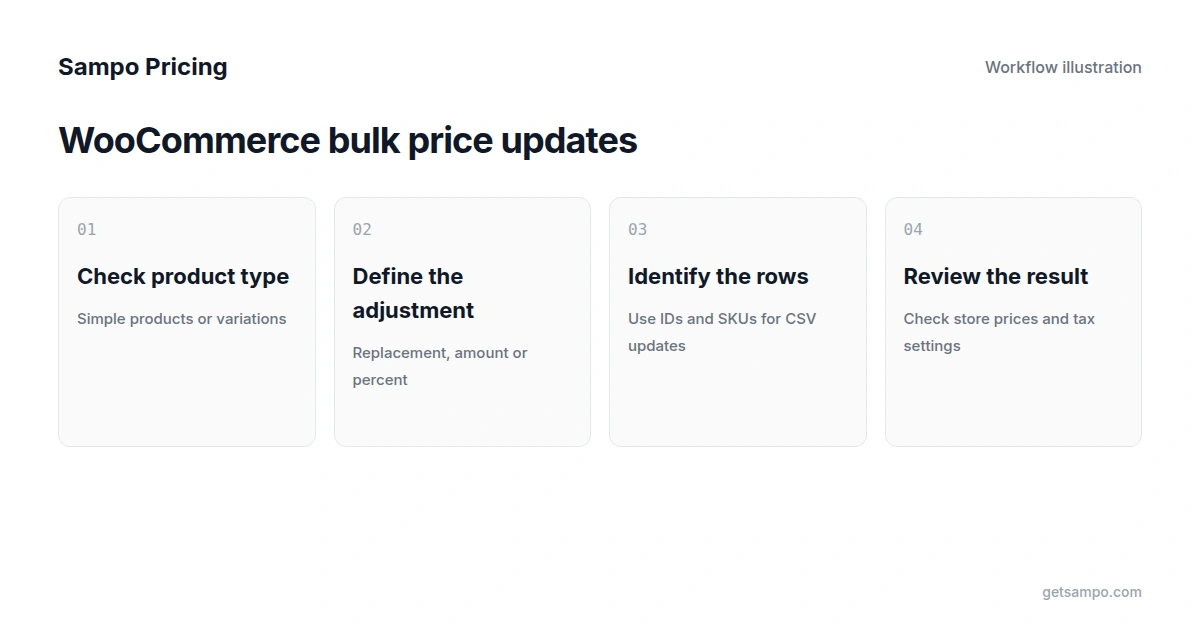
WooCommerce has native bulk-editing controls for changing selected product prices. It also includes a CSV importer for updating matching products. The appropriate method depends on your product types and whether the change is a one-off adjustment or a recurring pricing decision.
Define the update before selecting products
Choose the product group, the regular or sale price to change, and whether the adjustment is a fixed amount, a percentage or a replacement value. Check the store's tax settings and currency so the number you edit corresponds to the intended customer price.
Keep the original values for the affected products. If you are preparing a promotion, record the intended end state as well as the discount. Inspect active coupons or pricing extensions that may change the final price independently.
Bulk-edit simple products in WooCommerce
- Open Products > All Products in WordPress admin.
- Filter the list and select the products you want to update.
- Choose Edit from Bulk actions and apply it.
- Set the required Price or Sale adjustment, leaving unrelated fields unchanged.
- Review the selected products and choose Update. Inspect representative storefront prices afterward.
The native price options include a replacement price, an increase and a decrease by a fixed amount or percentage. WooCommerce documents sale-price options separately. In one sale-price option, leaving the value blank or entering zero removes the sale price, so check the chosen operation rather than treating every blank as harmless. Read the current bulk-editing instructions before applying the change.
Treat variable products separately
The All Products bulk editor works best with simple products and does not handle every detail of variable or grouped products. A variable product's individual variations can have different regular and sale prices. Changing a parent row is not a reliable substitute for checking those variations.
For a single variable product, use the variation controls documented by WooCommerce. For a larger set, a mapped CSV or an appropriate extension can be more practical. Test the method on the product types in your own store.
Update existing products with a CSV
Export the relevant products and keep an unchanged copy. Preserve IDs, SKUs, variation types and parent relationships, then calculate the intended prices in a working copy. Use the exported column format and avoid changing unrelated product data.
- Open Products > All Products and choose Import.
- Select the prepared CSV and enable Update existing products.
- Review column mapping and select Do not import for fields you do not intend to change.
- Run the importer, let it finish and review failed or skipped rows.
- Inspect the affected products and variations in the storefront before expanding the update.
WooCommerce matches updates by product ID or SKU. Some newer versions also support a mapped global identifier when both are blank; check your version rather than assuming it will rescue an incorrect ID or SKU. The official importer documentation explains matching, variation handling and formatting.
Price calculations need a margin check
Increasing every price by a percentage does not establish that each product remains competitive. Reducing prices can also push selected items below an acceptable floor. Use current costs and account for fees and tax treatment.
Gross margin differs from markup. As an illustration, a cost of 80 and a target gross margin of 20% imply a selling-price floor of 100 before other costs: 80 divided by 0.80. Adding 20% to cost gives 96, which is a different result. Check the definition used by your pricing process.
Compare extensions by the job they perform
An extension can add filters, scheduling, variation controls or undo functions. Confirm which product types, fields and reversal conditions its plan covers. A scheduled editor can apply a saved adjustment repeatedly without collecting competitor data.
When Sampo Pricing is relevant
For recurring competitor-based decisions, Sampo combines WooCommerce catalog data, matched competitor observations and selected-product pricing rules. Review comparable listings and minimum-price settings, and confirm the connected store has the permissions needed to receive updates. Stock and sales-based conditions require the corresponding data.
A native bulk edit can be enough when you already know the desired prices. If you need a market reference for repeated updates, evaluate that complete workflow against your own catalog and current plans. See the editing versus repricing comparison before choosing a tool.
Apply pricing rules to selected products using competitor data and minimum prices you configure.